> For the complete documentation index, see [llms.txt](https://docs.hypersolutions.co/llms.txt). Markdown versions of documentation pages are available by appending `.md` to page URLs; this page is available as [Markdown](https://docs.hypersolutions.co/request-based-basics/recording-har-files-for-harvey.md).
# Recording HAR files
This page explains how to record HAR files from your code for debugging and support. We explain how to do this with the recommended tools: Charles Webproxy and powhttp.
{% hint style="warning" %}
**Harvey is deprecated.** Our [Claude Code plugin](/ai-plugins/claude-code-plugin.md) and [Codex plugin](/ai-plugins/codex-plugin.md) analyze HAR files directly in your editor with the same rule set, capture live traffic via powhttp, and can fix your code for you. The recording steps below still apply: the plugins and our support team both work from HAR files.
{% endhint %}
### Prerequisites
Before continuing, make sure you have installed and configured one of the supported proxy tools:
* [Installing Charles WebProxy](/request-based-basics/installing-charles-webproxy.md)
* [Installing powhttp](/request-based-basics/installing-powhttp.md)
### Routing your script traffic
In order to record a HAR file, you first need to route your script's HTTP traffic through the proxy. You can do this by setting the proxy address in your code to your local proxy port:
* **Charles WebProxy:** `http://127.0.0.1:8888`
* **powhttp:** `http://127.0.0.1:8080` (default port, check your powhttp settings)
{% hint style="info" %}
Make sure your proxy is running **before** you start your script, otherwise the requests will fail or bypass the proxy entirely.
{% endhint %}
### Recording with Charles WebProxy
1. Run your script while Charles is open. You should see the requests appear in the session list.
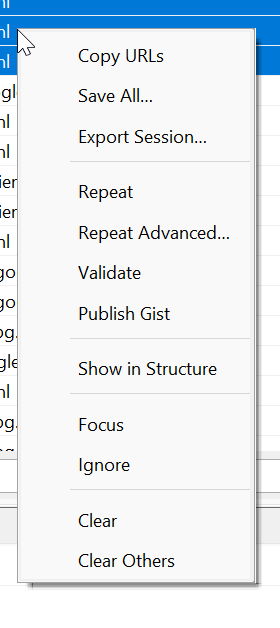
2. Select the requests you want to export. You can select multiple by holding `Ctrl` (or `Cmd` on macOS) and clicking each request, or `Ctrl+A` to select all.
3. Right-click on the selected requests and click **Export Session...**
4. In the save dialog, select **HTTP Archive (.har)** from the **Files of type** dropdown at the bottom.
5. Choose a location and save the file.
### Recording with powhttp
1. Run your script while powhttp is open. You should see the requests appear in the session list.
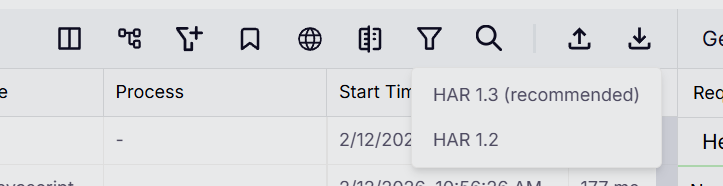
2. Click the **Download** button (⬇) in the toolbar.
3. Select **HAR 1.3 (recommended)** from the format options.
4. Choose a location and save the file.
{% hint style="info" %}
For more on getting the most out of powhttp — searching a capture, diffing requests, replay, and external proxies — see the [powhttp guide](https://hypersolutions.co/blog/how-to-use-powhttp-web-scraping).
{% endhint %}
### Submitting your HAR file
Once you have your `.har` file saved, you can attach it to your support ticket or send it to us via Discord. The HAR file contains all the request and response data we need to diagnose your issue.
{% hint style="warning" %}
HAR files may contain sensitive information such as cookies, tokens, and authorization headers. If you are concerned about sharing this data, let us know and we can guide you on how to sanitize the file before sending it.
{% endhint %}